Signing in
Connect Shady Notes to your account.
How it works
Section titled “How it works”Sign-in happens in your browser, not in the app — the app never sees a password.
- Preferences → Premium → Sign in
- Your browser opens
shadynotes.app/app/connect - Sign in or create an account there
- The page hands back to Shady Notes and the browser can be closed
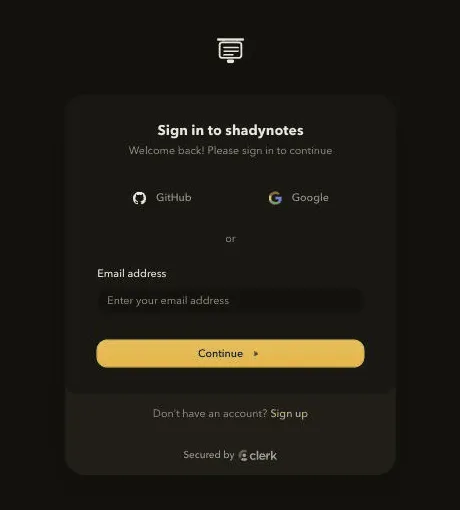
The app receives a token, stores it in the macOS Keychain, and checks your entitlement.
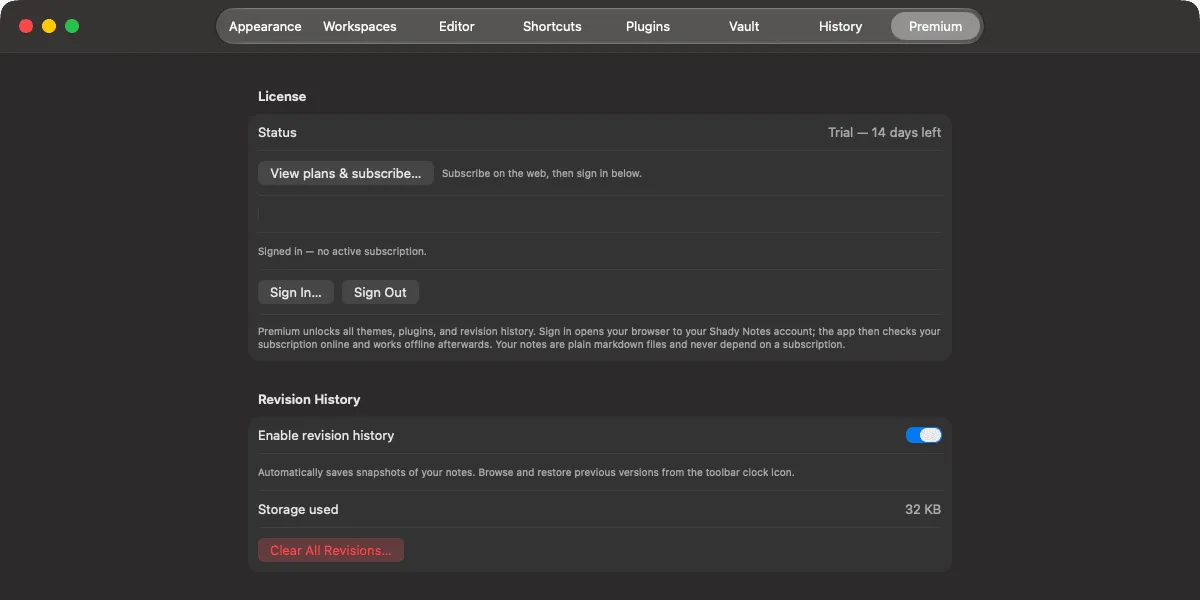
Signed in is not the same as subscribed
Section titled “Signed in is not the same as subscribed”Two independent things:
- Signed in — a token is stored and the app knows which account you are
- Entitled — that account currently has an active plan
You can be signed in with no subscription — during the trial, or on the free tier, that is the normal state. Subscribing happens on the web rather than in the app, and once a plan is on the account the app picks it up on its next check without signing in again.
Working offline
Section titled “Working offline”After a successful check, the app works offline for 14 days before needing to re-verify.
Signing out
Section titled “Signing out”Preferences → Premium → Sign out removes the token from the Keychain and returns the app to the free tier. Notes are untouched.
If sign-in does not complete
Section titled “If sign-in does not complete”- Make sure the browser actually finished loading the connect page
- The hand-off uses a
shadynotes://link — allow the browser to open it - If the browser landed on the page but nothing happened in the app, close the tab and start again from Preferences; the link is single-use
- → Troubleshooting
Documented against Shady Notes 4.1.19 · release notes