Appearance
Scroll direction, trigger zone, pull tab, and workspace dots.
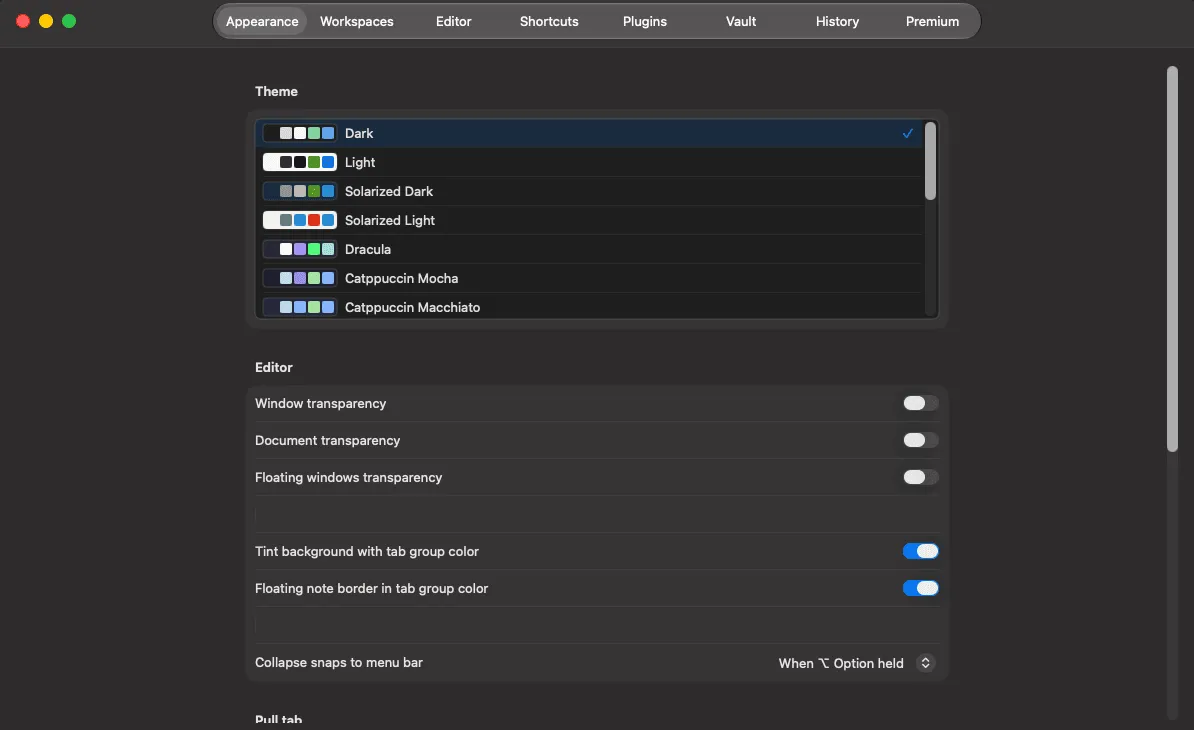
Preferences → Appearance covers how the shade looks and how it opens.
Opening the shade
Section titled “Opening the shade”| Setting | What it does |
|---|---|
| Scroll direction | Which way opens the shade. Defaults to matching your input device |
| Trigger zone depth | How close to the top edge the pointer must be for a scroll to count |
| Esc closes the shade | Off by default. Even on, an active search takes the first Esc |
| Launch at startup | Start Shady Notes at login |
A deeper trigger zone makes the shade easier to summon; a shallower one keeps it out of the way when you scroll documents near the top of the screen.
The awning and pull tab
Section titled “The awning and pull tab”The strip below the menu bar has four styles:
- Stripes only
- Pull tab below stripes
- Pull tab behind stripes
- Pull tab behind stripes, compact
Plus tab width and inactive opacity — how faint the tab goes once your pointer leaves it. Lower is subtler; too low is hard to find.
Transparency
Section titled “Transparency”Set independently for the shade, sticky notes and window mode, along with the window material and an editor background tint.
Transparency looks good over a plain desktop and becomes hard to read over busy content. If text ever feels low-contrast, this is the setting to change.
Workspace dots
Section titled “Workspace dots”Workspace pills can show as coloured dots in the toolbar, and the app icon carries a badge in the active workspace’s colour.
Chrome border
Section titled “Chrome border”The border width around the shade — 0 removes it entirely.
Documented against Shady Notes 4.1.19 · release notes