Workspaces
Group your file trees, starred notes, and open tabs into separate working contexts.
A workspace is a working context: a colour, a name, an assigned folder, a home page, and its own group stars. Switching workspaces switches what the sidebar shows and which notes you’re looking at, without touching anything on disk.

Workspaces appear as coloured pills. Click one to switch, or cycle with ⌥⇥ and ⌥⇧⇥.
What a workspace holds
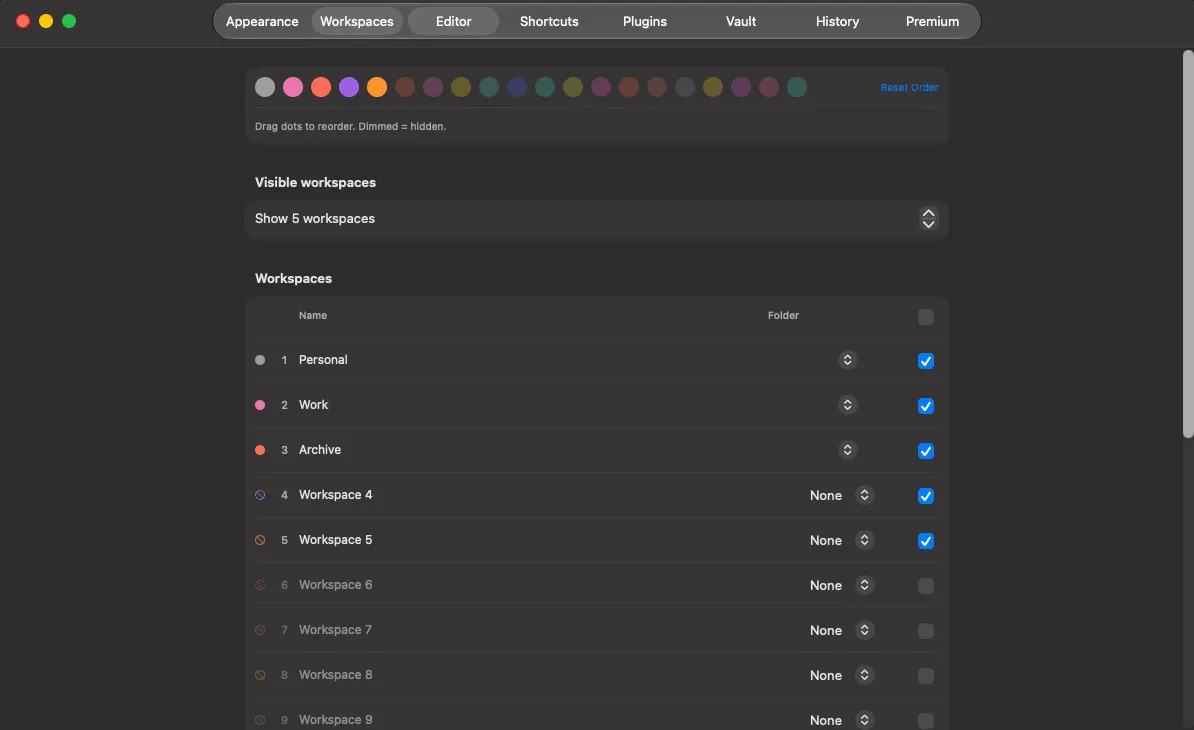
Section titled “What a workspace holds”| Property | What it does |
|---|---|
| Name | Defaults to “Workspace N” |
| Colour | From a 20-colour palette; tints the pill and the app icon badge |
| Assigned file tree | Which folder this workspace shows. Unset means all of them |
| Home page | A note (or plugin view) opened when you switch to it |
| Starred notes | Only the ones set with Star for This Group — the ordinary star is global. See Starred notes |
| Visible | Hide a pill from the strip without deleting it |
| Active | Inactive workspaces are excluded from the Navigator’s combined view |
Set all of this up in Preferences → Workspaces.
Visible vs. active
Section titled “Visible vs. active”These sound alike and are not:
- Visible is about the pill strip. Hidden workspaces still take part in everything else — they are just not shown.
- Active is about search. An inactive workspace’s files are excluded from the Navigator’s combined “all files” view, but you can still select its filter pill directly and see them.
Deactivating is how you park a finished project without deleting it or having its notes turn up in every search.
A worked example
Section titled “A worked example”Three workspaces, one Mac:
| Workspace | Colour | Tree | Home page |
|---|---|---|---|
| Personal | amber | ~/Documents/Notes | Inbox.md |
| Work | blue | ~/Work/notes | This week.md |
| Archive | grey | ~/Archive | — (inactive) |
Archive stays out of day-to-day searching but is one click away when needed.
Themes that follow the workspace
Section titled “Themes that follow the workspace”Two of the sixteen themes — Chromatic Dark and Chromatic Light — take their accent colour from the active workspace instead of a fixed palette. With those selected, switching workspace re-tints headings, links and list markers, so the colour tells you where you are.
→ Themes
Documented against Shady Notes 4.1.19 · release notes