The shade
How the shade opens, closes, and stays out of your way.
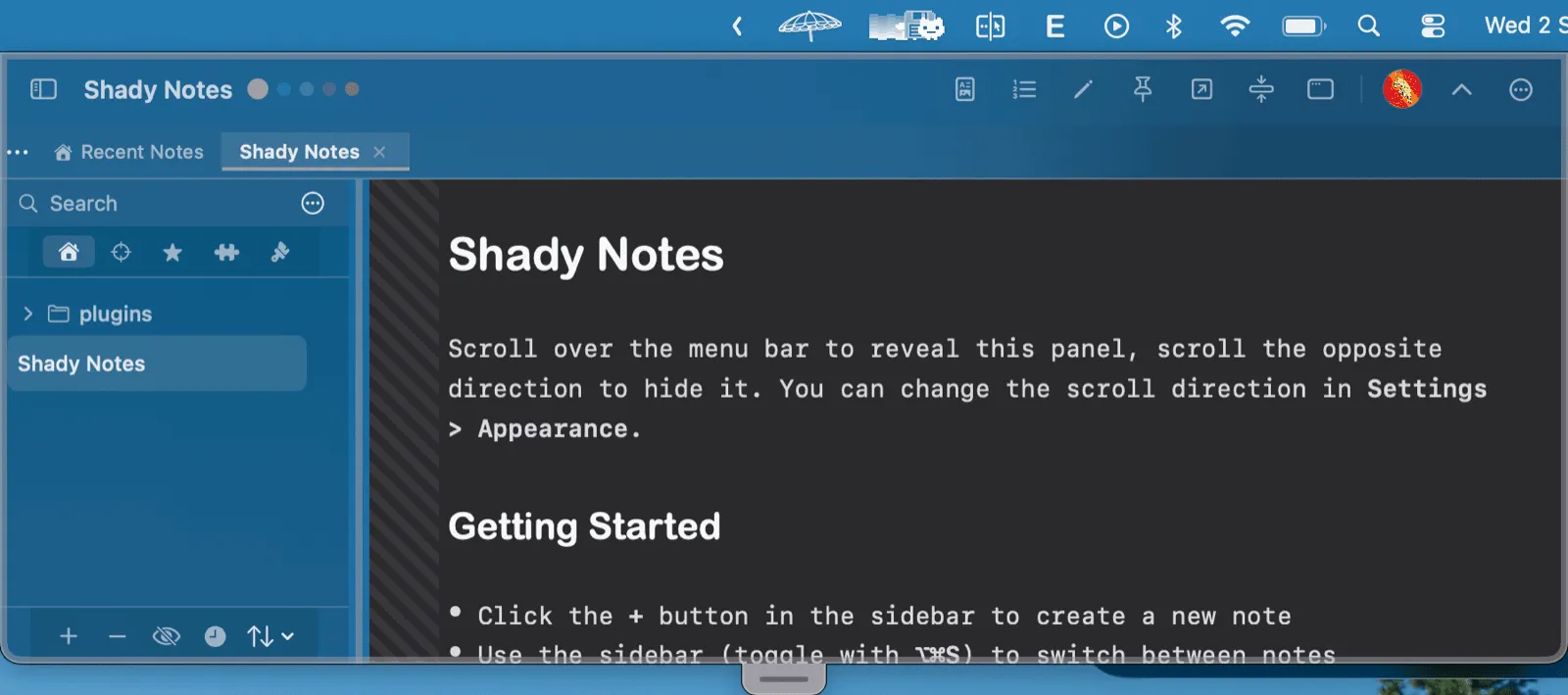
Most notes apps give you another window to manage. Shady Notes puts your notes just off the top of the screen instead — a scroll away, above everything else.

Opening and closing
Section titled “Opening and closing”| Action | Effect |
|---|---|
| Scroll down near the top of the screen | Open |
| Scroll up while open | Close |
| Click the pull tab | Toggle |
| ⌃⌥⌘↓ from any app | Toggle |
| Click ↑ in the toolbar | Close |
| Click outside the shade | Close, unless pinned |
| Esc | Close, if enabled in Preferences |
The scroll trigger
Section titled “The scroll trigger”The scroll gesture only fires when your pointer is within a set distance of the top edge of the frontmost window — the trigger zone. That keeps an ordinary scroll in a document from yanking the shade down.
Both the zone depth and the scroll direction are in Preferences → Appearance. Direction defaults to matching your input device, so trackpad natural scrolling and a mouse wheel both behave the way you’d expect.
Esc closing the shade is off by default, and it is deliberately layered: if a sidebar search is active, the first Esc clears the search and the shade stays put. Only a second press closes it.
Pinning
Section titled “Pinning”Click the pin in the toolbar and clicking outside no longer closes the shade. Useful when you’re copying between the notes and something behind them. Click it again to unpin.
Minimize
Section titled “Minimize”⇧⌘M hides the toolbar and sidebar, leaving only the editing surface. A small restore button appears in the tab bar — or floating in the editor if only one tab is open. ⇧⌘M again brings the chrome back.
Window mode
Section titled “Window mode”Sometimes you want an ordinary window. Click the ⊡ icon in the toolbar (or choose Window Mode from the menu bar icon) and the shade detaches into a normal, resizable macOS window that behaves like any other app.
Click the icon again — now showing ⇕ — or close the window to go back.
Size and position
Section titled “Size and position”The shade opens 900 pt wide, toward the right of the screen.
| Action | Effect |
|---|---|
| Drag the bottom edge | Height |
| Drag the left or right edge | Width, from that side |
| Drag a bottom corner | Both |
| Drag the toolbar or empty tab-bar space | Move it horizontally |
| Hold ⇧ while dragging | Resize symmetrically about the centre |
Minimum size is 400 × 200 pt. Size and position persist until you quit.
Documented against Shady Notes 4.1.19 · release notes