Find and replace
Search within a note and replace matches one at a time or all at once.
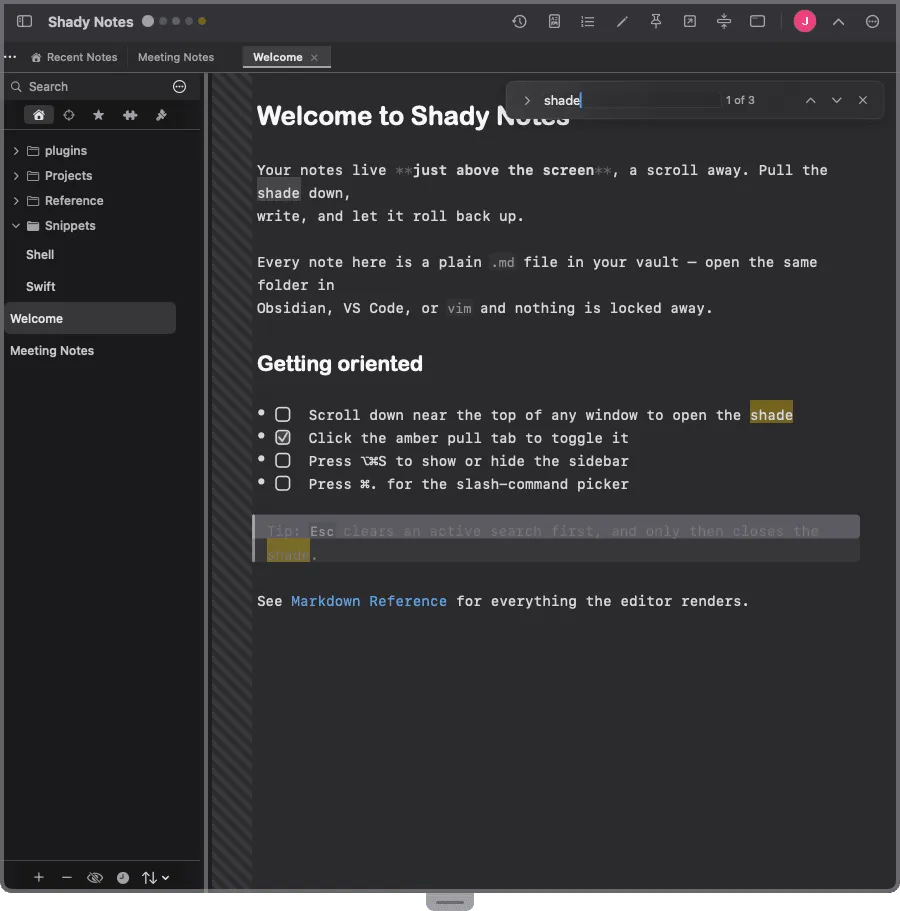
⌘F opens the find bar in the top-right of the editor. If you have text selected, it starts pre-filled with it.
Finding
Section titled “Finding”| Action | Key |
|---|---|
| Find next | ↵ or ⌘G |
| Find previous | ⇧↵ or ⇧⌘G |
| Close the bar | Esc or the × |
Every match is highlighted; the current one more brightly. The count and current index sit next to the field, so you know whether you’re on match 3 of 40.
Replacing
Section titled “Replacing”Click the chevron to expand the replace field.
- Replace changes the current match and moves to the next
- All changes every match in the note
Find and replace works on the current note. To search across your whole vault, use the sidebar search or the Navigator.
Esc closes the find bar first. If closing the shade with Esc is enabled, it takes another press — the shade will not vanish out from under an active search.
Documented against Shady Notes 4.1.19 · release notes