The sidebar
Browse, search, create, and delete notes from the file tree.
Toggle the sidebar with ⌥⌘S, or the toolbar icon. Drag the divider to resize it.
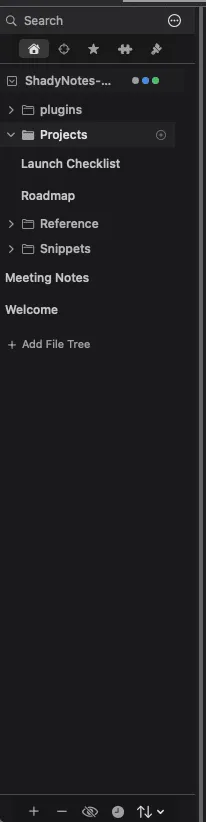
Tabs down the side
Section titled “Tabs down the side”The sidebar has several tabs: the file tree, starred notes, themes, and plugins when you have any enabled.
Browsing
Section titled “Browsing”| Action | How |
|---|---|
| Expand or collapse a folder | Click the folder row |
| Open a note | Click it — opens in a tab |
| New note | + at the bottom |
| Delete | − (asks first; hold ⌥ to skip for a single note) |
| Select several | ⇧-click, at any depth |
| Reveal in Finder | ⌥-click, or right-click → Reveal in Finder |
| Toggle preview lines | The eye icon at the bottom |
Folders sort alphabetically; files sort by modification date, newest first.
The preview line shows the first line of content from each note without opening it. Turn it off for a denser list.
Searching
Section titled “Searching”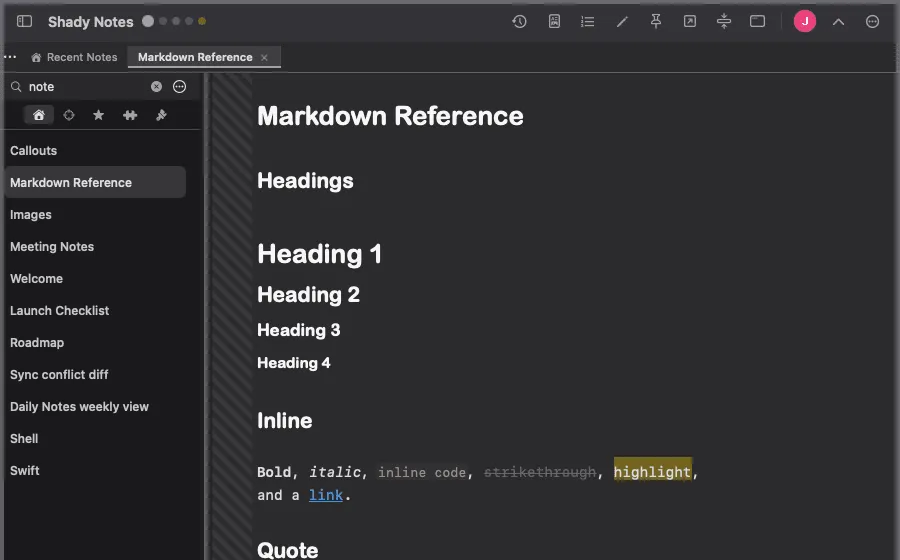
The field at the top searches every note in the vault, not just the visible folder:
- Filenames are matched first, because it is fast
- then file contents
- results replace the tree, sorted by modification date
- a spinner shows while a large vault is scanned — the search runs in the background and the app stays responsive
Clear with the × or Esc.
The … menu
Section titled “The … menu”- Reveal in Finder
- Create from Sample — a new note demonstrating every Markdown feature
- Delete All Notes — every
.mdin the vault, with a confirmation
Documented against Shady Notes 4.1.19 · release notes