Menus
The toolbar menu, the status bar menu, and right-click menus.
The toolbar menu
Section titled “The toolbar menu”The … button in the toolbar groups everything the shade can do.
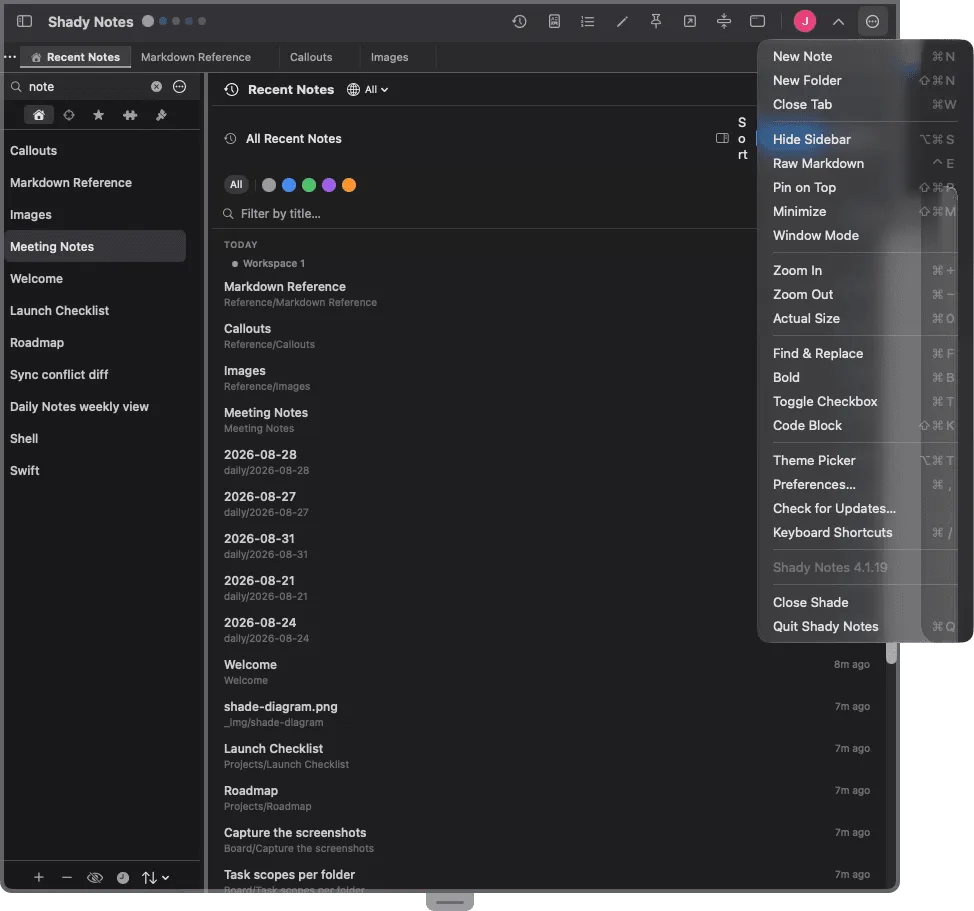
| Group | Contains |
|---|---|
| Notes | New Note · Close Tab |
| View | Show/Hide Sidebar · Raw/WYSIWYG Mode · Pin on Top · Minimize · Zoom In/Out/Actual Size |
| Editing | Find & Replace · Bold · Toggle Checkbox · Code Block |
| Other | Theme Picker · Preferences · Keyboard Shortcuts · Close Shade · Quit |
The menu bar icon
Section titled “The menu bar icon”Clicking the umbrella in the menu bar gives a short menu that works whether or not the shade is open.
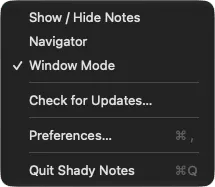
- Show / Hide Notes — toggle the shade
- Window Mode — ticked while active
- Preferences…
- Quit Shady Notes
Right-click menus
Section titled “Right-click menus”On a file in the sidebar: Open · Star / Unstar · Reveal in Finder · Delete.
On a tab: Close Other Tabs · Close Tabs to the Right · Reveal in Finder.
On the tab bar ⋮: Close All Tabs · Close Tabs to the Right.
In the editor: the standard macOS text menu, plus Markdown formatting.
The shortcuts overlay
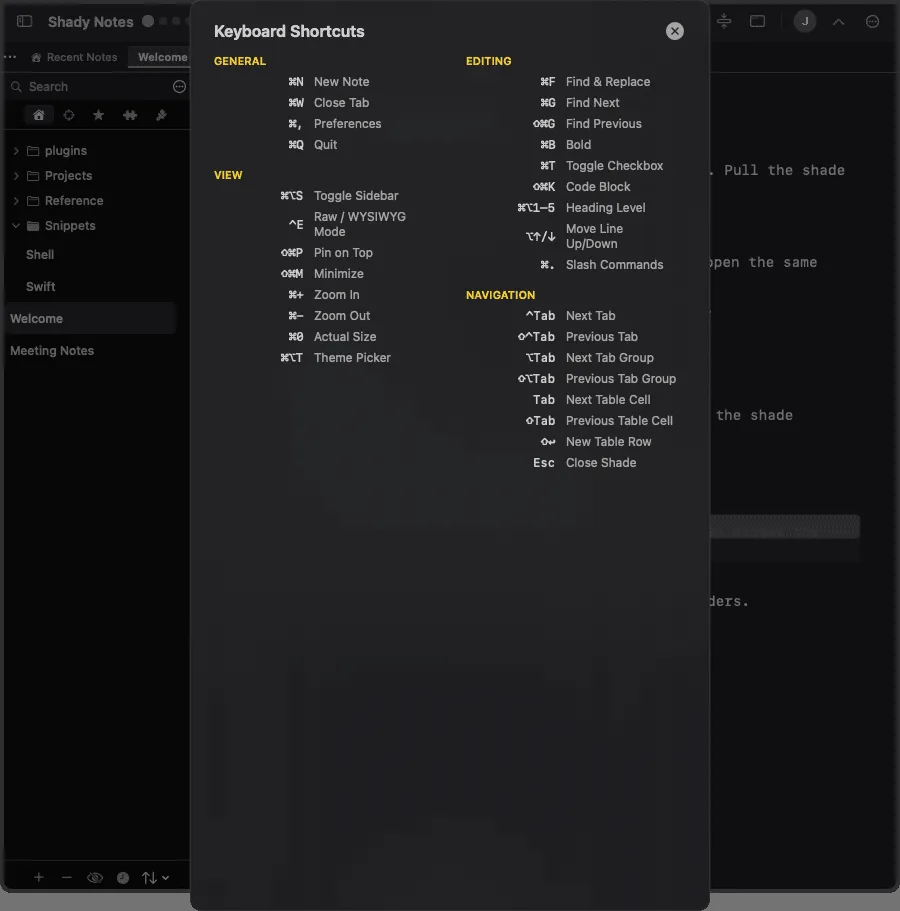
Section titled “The shortcuts overlay”⌘/ shows every shortcut with its current binding — the authority if you have remapped anything.
Documented against Shady Notes 4.1.19 · release notes