Starred notes
Keep your most-used notes one click away.
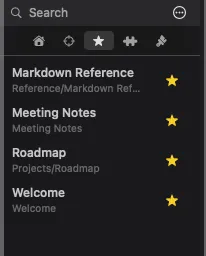
There are two kinds of star, and they are separate. Which one you get depends on which menu item you pick.
| How | Where it shows | |
|---|---|---|
| Star | Hover a file and click the star, or right-click → Star | The Starred sidebar tab, with an amber star |
| Star for This Group | Right-click a file in the workspace file list | A split section at the top of that same list, with a dot in the workspace’s colour |
Star — the ordinary one
Section titled “Star — the ordinary one”This is the star you get by hovering a file, and the one the Starred sidebar tab lists. It belongs to the app, not to a workspace: a note starred this way stays starred whichever workspace you switch to.
Star for This Group — the per-workspace one
Section titled “Star for This Group — the per-workspace one”Right-clicking a file in the workspace file list adds a second menu item, Star for This Group. That star belongs only to the workspace you set it in, so starring a note in Work does not star it in Personal, even when both point at the same folder.
Those notes get their own section at the top of that list, above a divider you can drag, and are marked with a coloured dot rather than a star — the dot takes the workspace’s colour, which is how you can tell the two kinds apart at a glance.
Stars are not in the file
Section titled “Stars are not in the file”Starring is app state, not note content — nothing is written to the .md file,
so a starred note looks identical in Obsidian or any other editor. It also means
stars do not travel when you copy the vault to another Mac.
Documented against Shady Notes 4.1.19 · release notes