Images
Paste, drag, resize, and preview images inside a note.
Getting an image in
Section titled “Getting an image in”- Paste from the clipboard
- Drag a file into the editor
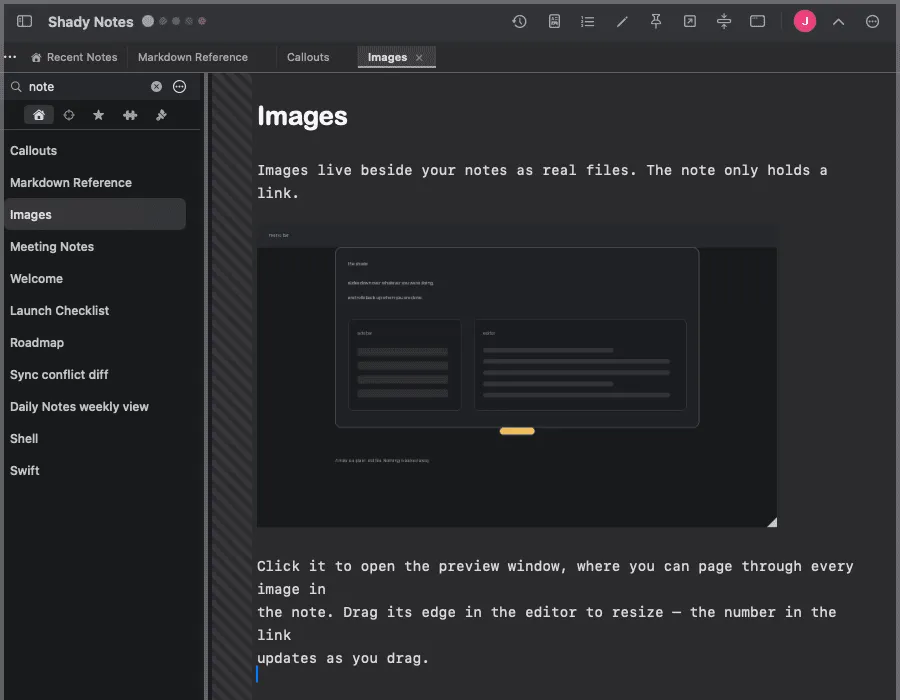
Either way the file is copied into your attachments folder and a link is
inserted. The image is not embedded in the note — the .md file stays plain
text with a reference to a real file on disk.
Where the files go
Section titled “Where the files go”Into _img/ beside your notes by default. Change the folder name in
Preferences → Editor.
Keeping attachments in a normal folder means they sync, back up and open in other apps like any other file.
Sizing
Section titled “Sizing”Two syntaxes:
![[diagram.png|400]]The second sets an explicit width in pixels. You can also drag the edge of an image in the editor to resize it — the number in the link updates as you drag. The step size for that drag is configurable in Preferences → Editor.
The preview window
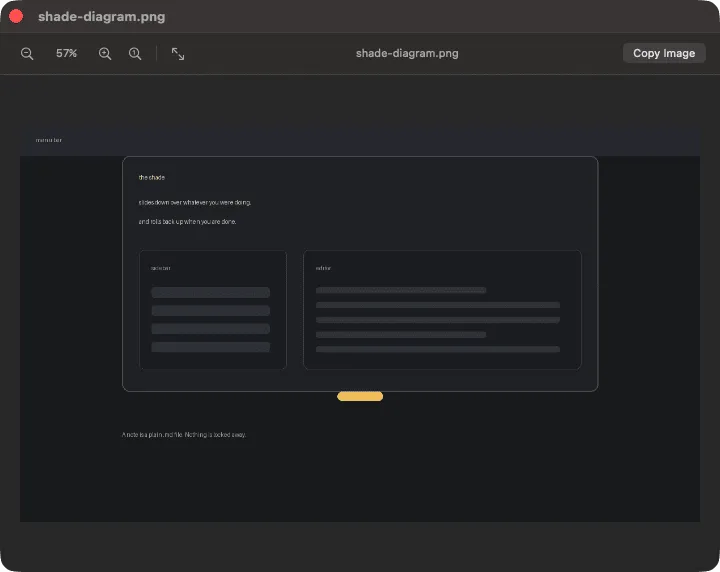
Section titled “The preview window”Click an image to open it full size in its own window, where you can page through every image in the note.
Dropping several at once
Section titled “Dropping several at once”The multi-image drop mode setting decides what happens when you drag in more than one file — one per line, or laid out together.
Animated GIFs
Section titled “Animated GIFs”Animate in the editor by default. If they are distracting, turn animate GIFs off in Preferences → Editor and they render as a still first frame.
Documented against Shady Notes 4.1.19 · release notes