Navigator
A full window for searching and comparing notes across every file tree.
The shade is deliberately small. The Navigator is the opposite: an ordinary, resizable window for working across everything at once.
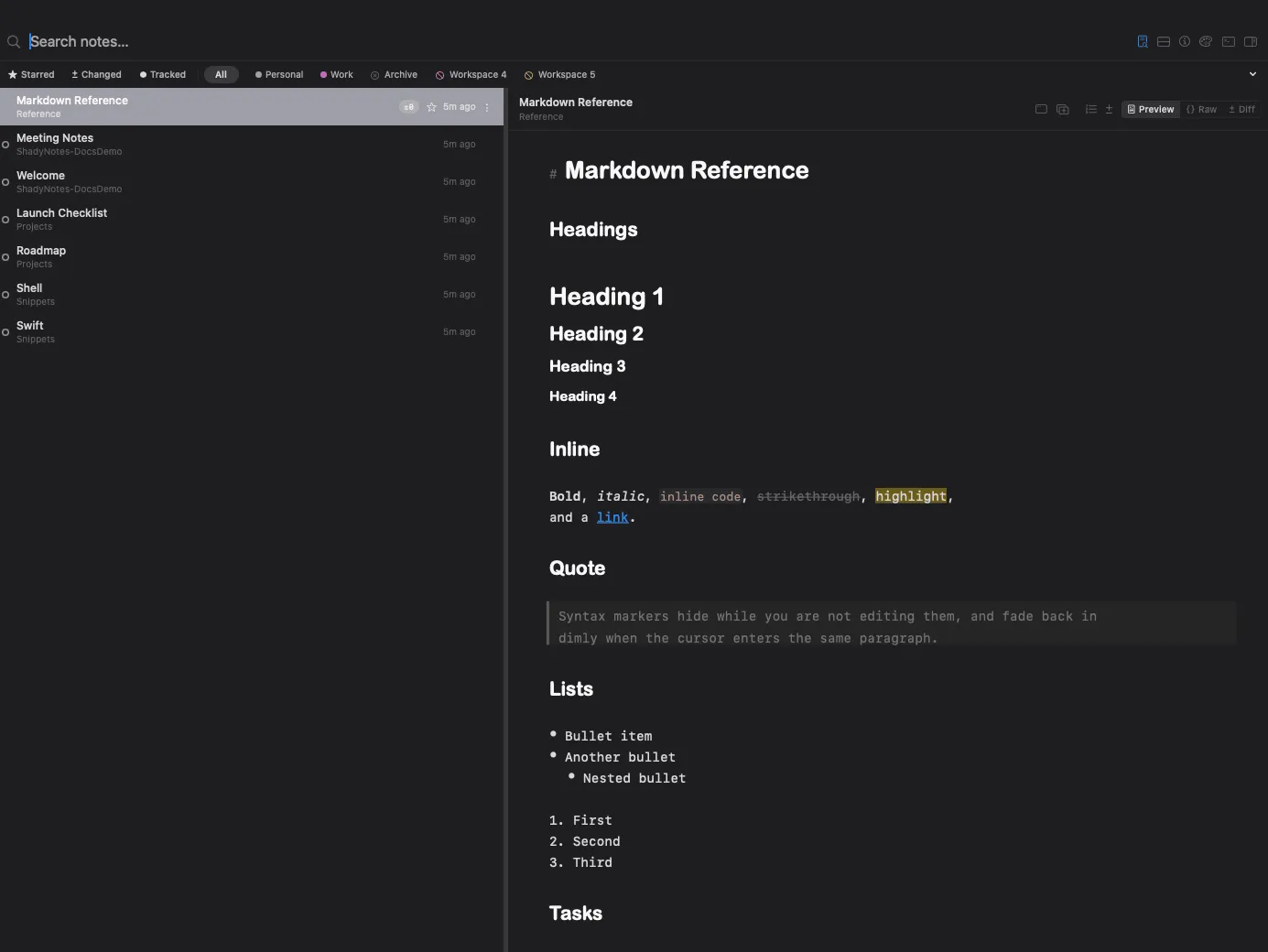
Open it from the toolbar menu, or with its global hotkey — unset by default, assignable in Preferences → Shortcuts.
What it adds
Section titled “What it adds”- Search across every file tree, not just the current workspace
- Preview tabs for reading without disturbing the shade’s tabs
- A gutter showing per-line change markers
- A right sidebar with note metadata
- Diff and history panels for comparing versions
Workspace filters
Section titled “Workspace filters”
Filter pills across the top scope the list to one workspace, or show everything combined.
The combined view respects the active flag: a workspace marked inactive in Preferences → Workspaces is excluded from it, but selecting its pill directly still shows its files. That is how you keep an archive searchable without it appearing in every result.
Diff and history
Section titled “Diff and history”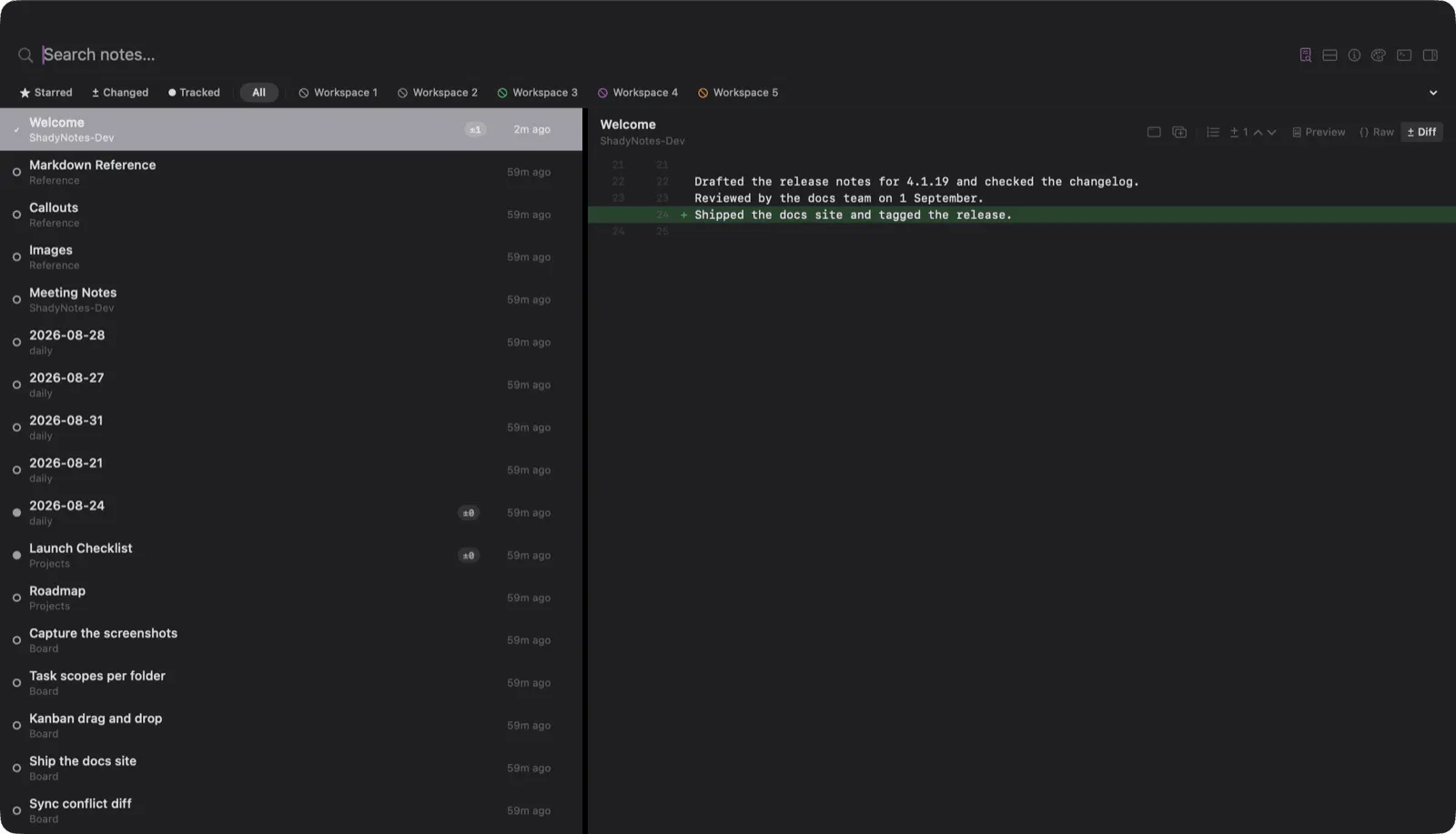
With revision history enabled, the Navigator shows a note’s timeline and diffs any two versions side by side.
Its own shortcuts
Section titled “Its own shortcuts”Three shortcuts apply only inside the Navigator:
| Action | Default |
|---|---|
| Show in Finder | ⇧⌘G |
| Show in Workspace | ⌘G |
| Copy Path | ⇧⌘C |
Show in Workspace jumps from a Navigator result to the same note in the shade, switching workspace if needed.
Documented against Shady Notes 4.1.19 · release notes