Settings
Every setting in Preferences, what it does, and its default.
Preferences has eight tabs. This page maps what lives where; the pages linked from each section explain the settings in context.
Open Preferences from the toolbar … menu or the menu bar icon.
Appearance
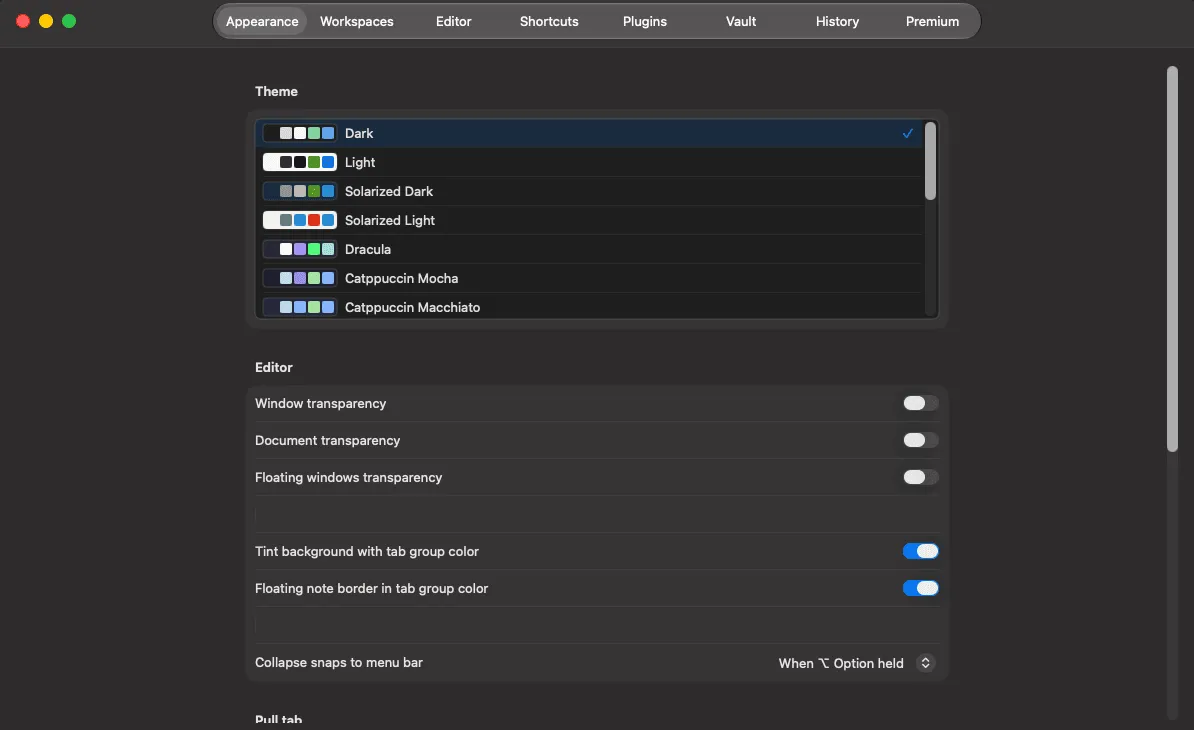
Section titled “Appearance”Scroll direction and trigger zone depth · Esc closes the shade · launch at startup · awning style, tab width and inactive opacity · window material · transparency for shade, sticky notes and window mode · editor background tint · sticky note border and collapse snap · chrome border width · workspace dots.
Workspaces
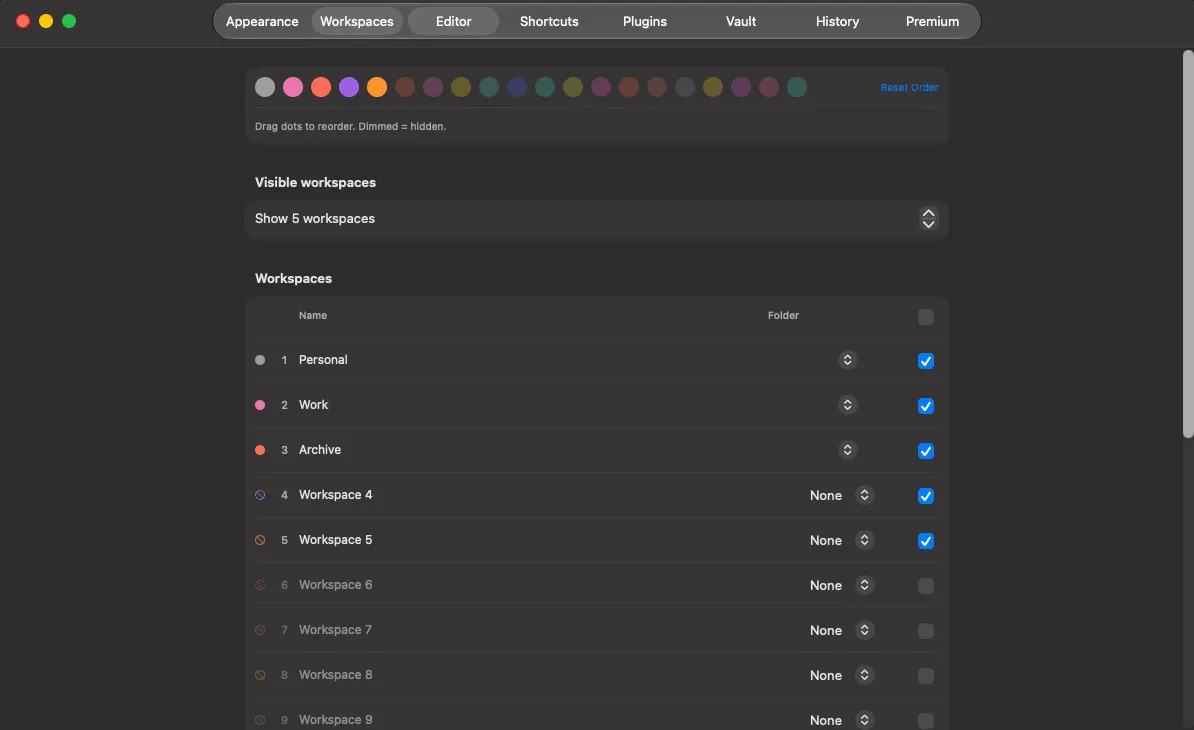
Section titled “Workspaces”One row per workspace: name, colour, assigned file tree, home page, visible and active flags.
Editor
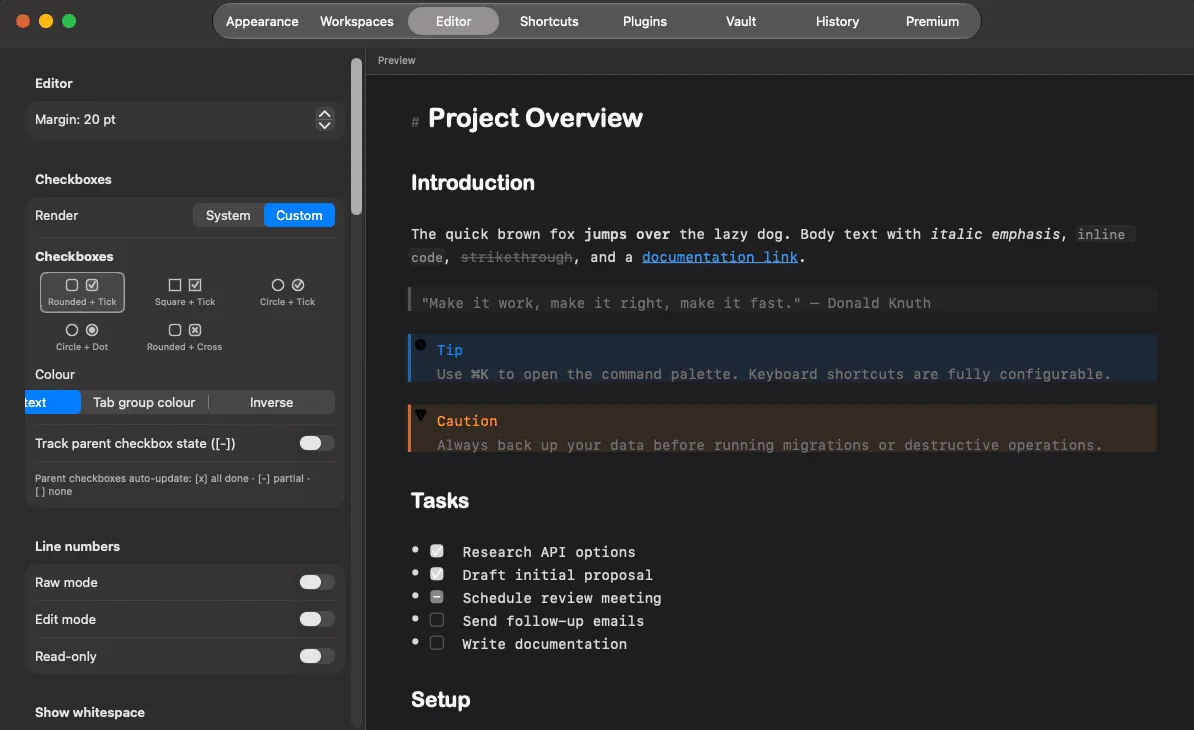
Section titled “Editor”The largest tab. Fonts and sizes · editor margin · code block wrap, width, language header, line height and colours · checkbox style and colour · automatic continuation · parent checkbox tracking · line numbers and whitespace per mode · table lines, stripes and auto-format · attachments folder · image resize step · multi-image drop · animate GIFs · preview backend.
Shortcuts
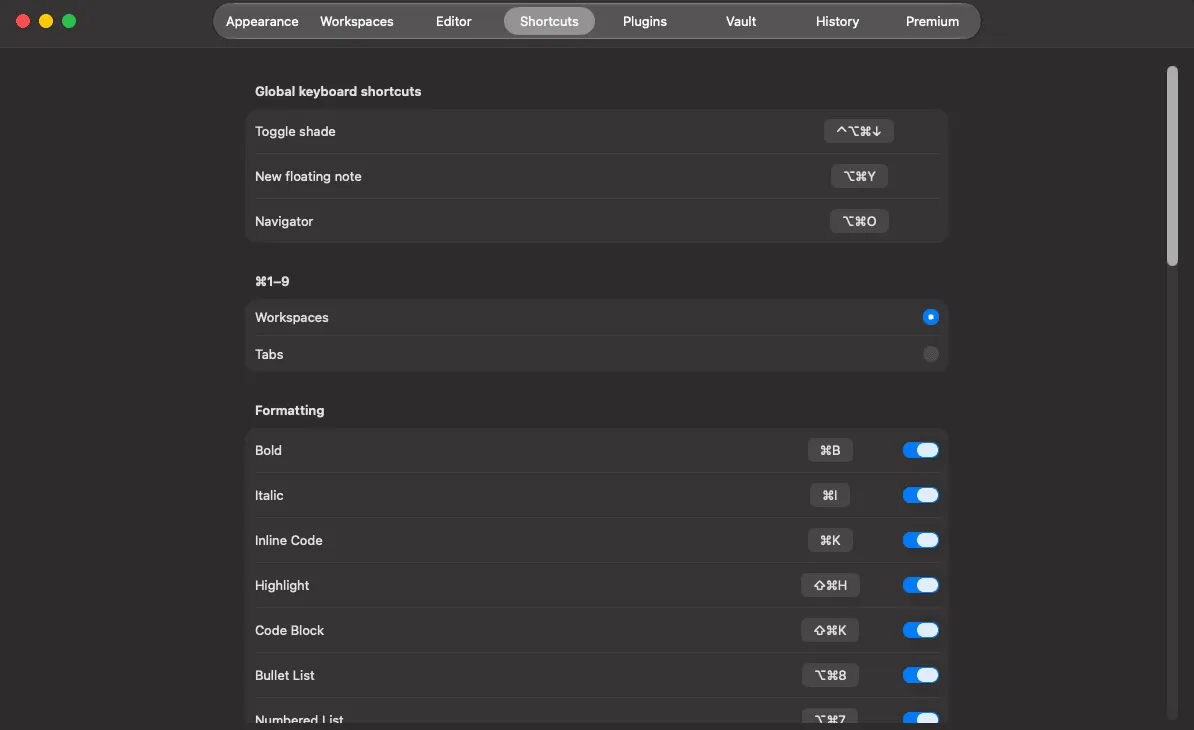
Section titled “Shortcuts”The three global hotkeys and all 32 editor actions.
→ Shortcuts · Keyboard shortcuts reference
Plugins
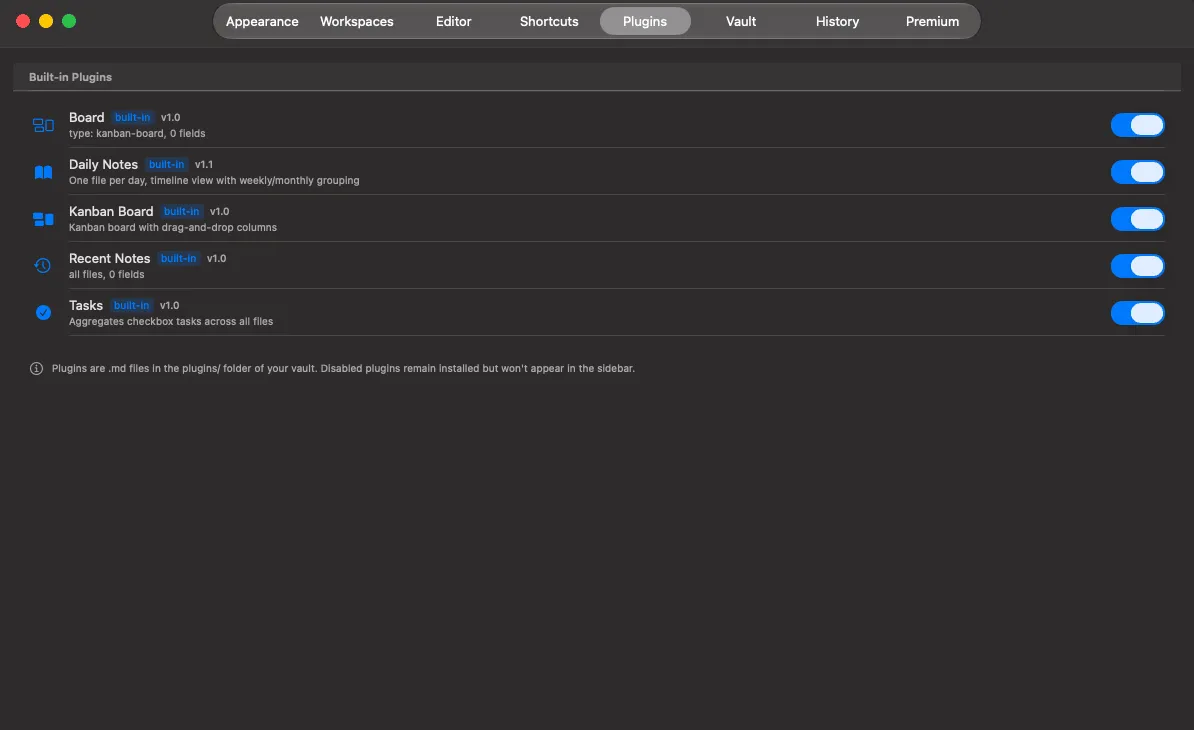
Section titled “Plugins”Enable and disable plugins, set each one’s folder scope, and reach the catalog.
→ Plugins
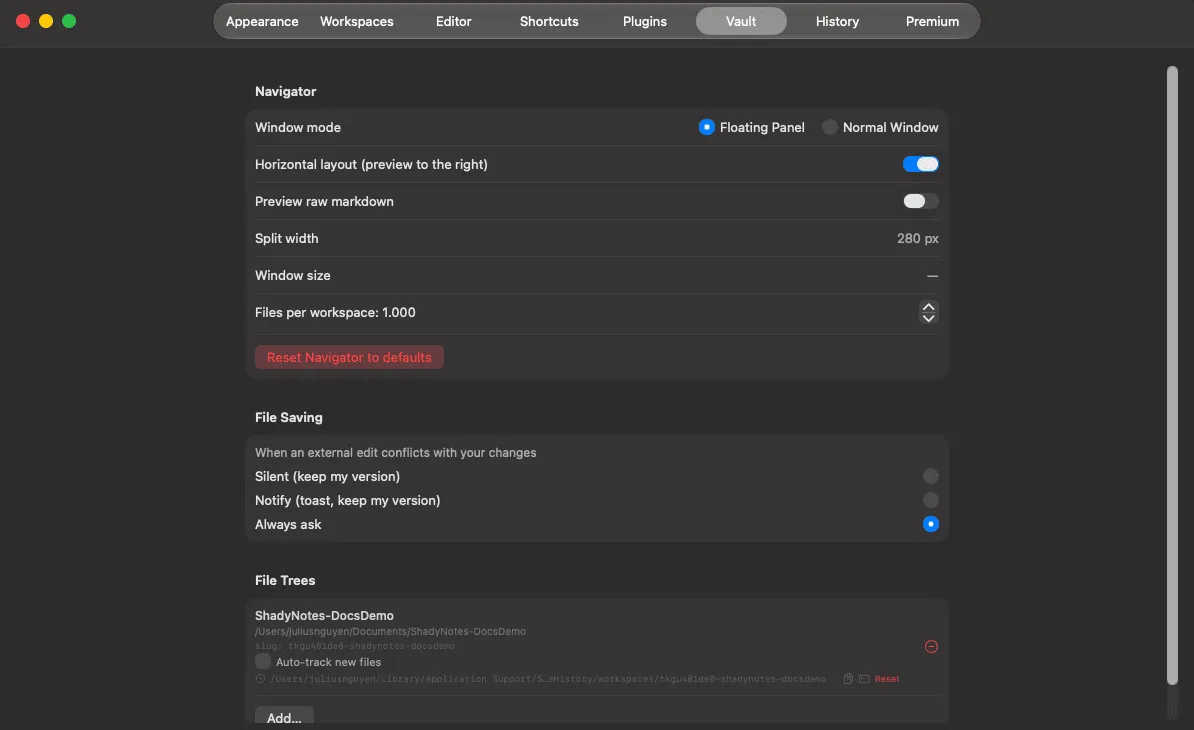
File trees — add, remove, rename, set auto-tracking and active state · new note naming strategy · conflict resolution mode.
History
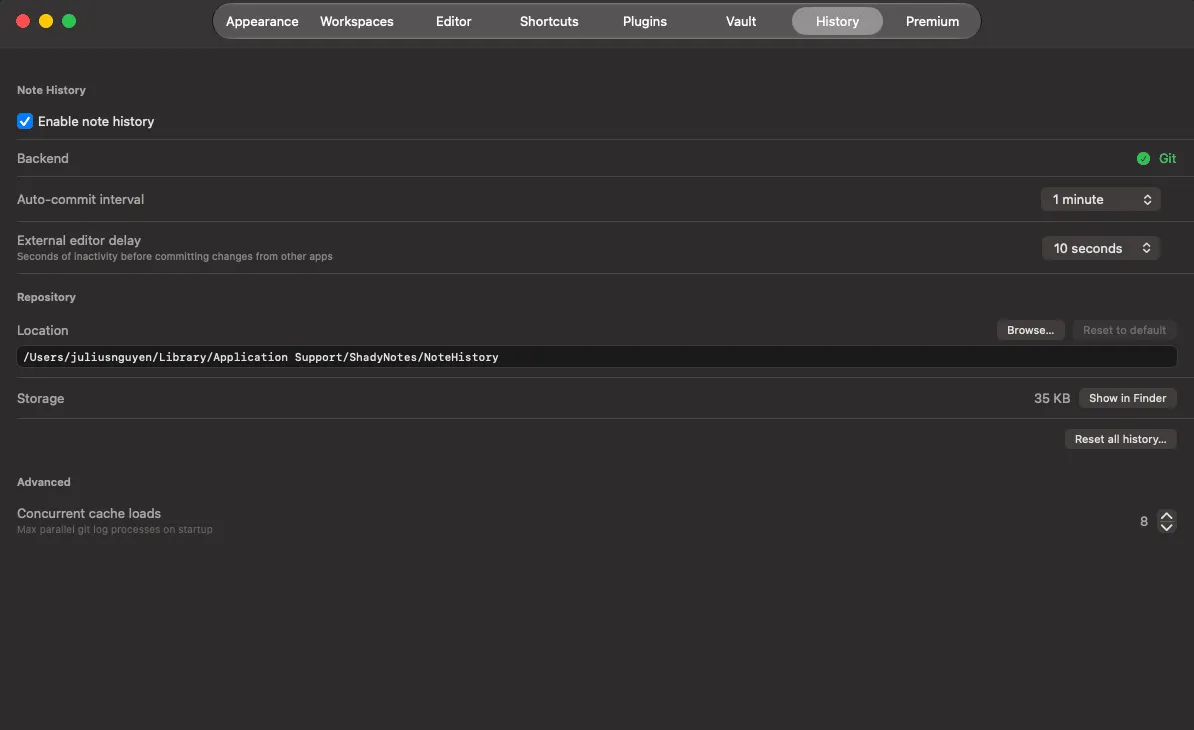
Section titled “History”Enable revision history · repository path · commit interval · external change debounce · maximum concurrent loads.
→ Revision history · The git backend
Premium
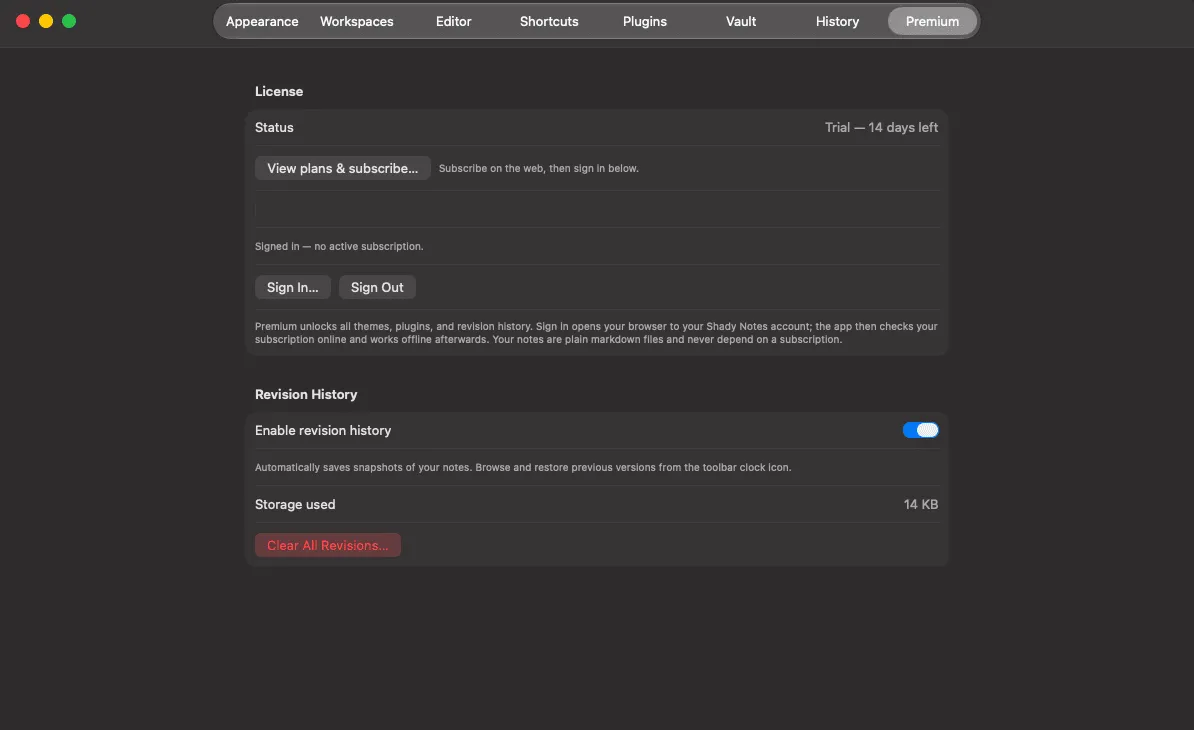
Section titled “Premium”Account status, sign in and out, trial state, and which features are unlocked.
→ Licensing · Signing in
Where settings are stored
Section titled “Where settings are stored”In macOS preferences, not in your vault. Copying the notes folder to another Mac brings the notes, not the configuration.
Documented against Shady Notes 4.1.19 · release notes